In plain English
- What happened
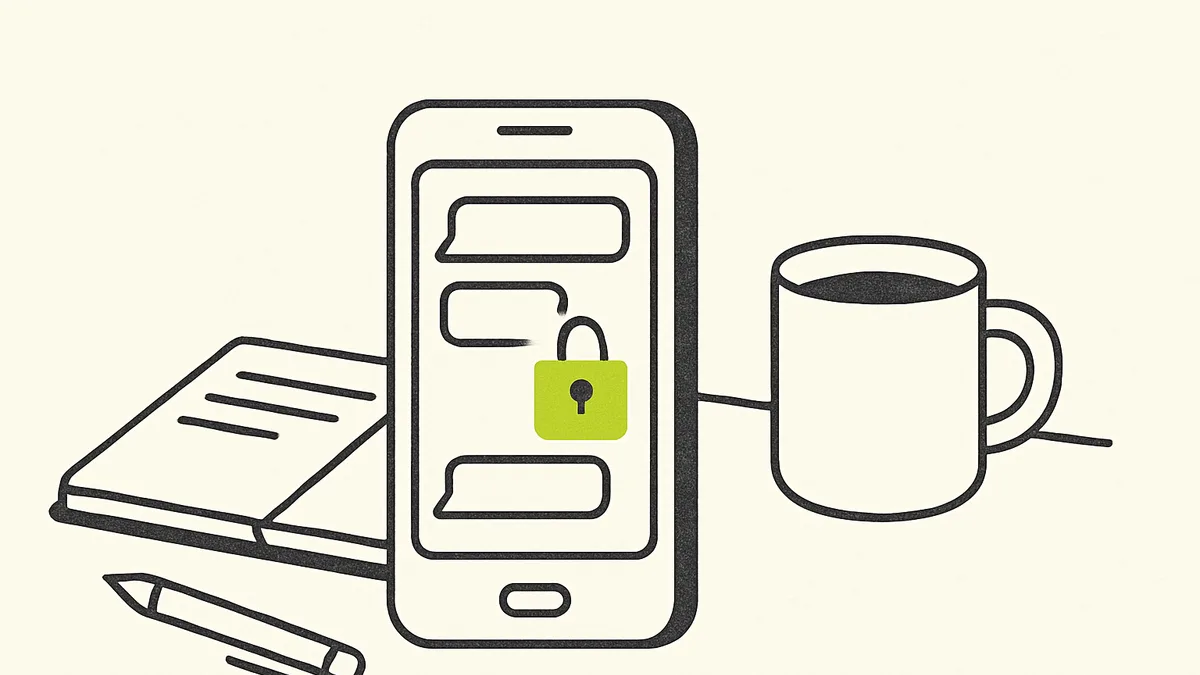
- On October 20, 2026, OpenAI began rolling out locked chats in ChatGPT, a feature that hides selected conversations from regular chat history, pinned chats, and search. Locked chats open with a 4-digit account PIN or supported device authentication, and the rollout covers Free, Go, Plus, and Pro users on web, the iOS and Android apps, and the new desktop app for macOS and Windows.
- Why it matters to your business
- Small business owners often mix client names, financial figures, or HR issues into the same ChatGPT account used for marketing copy or scheduling, and anyone with access to that device or login could otherwise scroll past it. Locked chats give a way to keep a specific conversation out of plain view without opening a second account, which matters if a phone or laptop is shared with staff or family.
- Do this
- Open ChatGPT's chat history, find any conversation with client, financial, or personnel details, and lock it from the chat's options menu if the feature has reached your account yet.
The feature works chat by chat rather than as an account-wide setting. Opening a conversation's more options menu (the three dots) and selecting Lock chat removes it from the regular list, the pinned section, and search results until it is unlocked again with the account PIN or device authentication.
Who has it and when
OpenAI describes the rollout as gradual, so not every account on every platform will see the option on the same day. It is reaching Free, Go, Plus, and Pro tiers across the web, the iOS and Android apps, and the newly released ChatGPT desktop app for Windows and macOS.
Nothing in the release notes mentions Business or Enterprise workspaces specifically, so owners managing a team account should check whether the option has appeared for their plan before assuming staff can use it the same way.
What does not change
Locking a chat is a visibility setting inside the app, not a change to how OpenAI handles the data behind it. The release notes are explicit that retention and model-improvement settings stay unchanged when a chat is locked.
OpenAI's own release notes state that locking a chat does not alter whether it is retained or used to improve models — those settings live elsewhere in the account.
Reality check
A locked chat is not the same as encrypting a conversation or keeping it out of OpenAI's systems entirely. It hides the conversation from someone casually looking at a shared screen or account, but anyone who already knows the PIN, or who has access to the account's separate data controls, is not blocked by this feature. For genuinely sensitive client or financial records, a separate account or a different tool built for that purpose is still worth considering over relying on a lock screen alone.
Getting started
- 1
Check whether the feature has reached your account
Open any chat and look for a Lock chat option in the three-dot menu; the rollout is gradual, so it may not appear yet on every device or plan.
- 2
Pick out conversations worth hiding
Scan recent chat history for anything involving client names, pricing negotiations, payroll, or personal staff issues that a visitor to the device should not stumble on.
- 3
Lock each one individually
There is no single switch to lock everything at once; each conversation needs its own Lock chat action from its options menu.
- 4
Set or confirm the account PIN
Locked chats open with a 4-digit PIN or the device's own authentication, so choosing a PIN that is not already used elsewhere on the device is worth doing before relying on this.
- 5
Review retention settings separately
If the goal is also to stop OpenAI from retaining or training on a conversation, that is handled through the account's data controls, not through locking the chat.
Sources