In plain English
- What happened
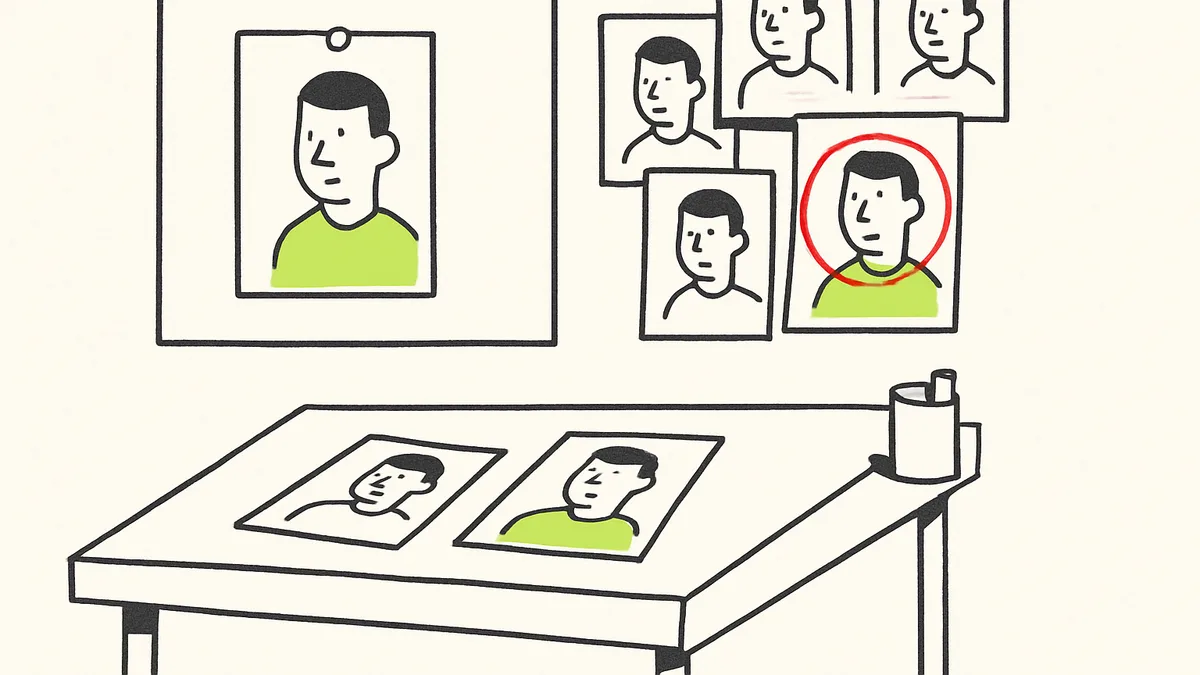
- Businesses using AI image tools to build a recurring mascot, spokesperson or product character often notice the face, outfit or proportions shift from one generated image to the next, even with the same prompt. Both OpenAI's image guidance and Google's Gemini image documentation address this directly: plain text-to-image generation starts from a new random draw every time, while image editing or reference-image features are built specifically to preserve a subject across multiple outputs.
- Why it matters to your business
- A small business that wants one consistent character for social posts, flyers or a brand mascot cannot get that from repeated text prompts alone. The fix is a workflow choice, not a better prompt, and it is free to try with tools most owners already have a subscription to.
- Do this
- Open the image tool's editing or image-upload option, not the plain text box, and regenerate your character from one saved reference image instead of typing the description again.
Ask an AI image generator for "a friendly cartoon fox mascot, orange and white, holding a wrench" twice in a row, and you will likely get two different foxes. That is not a bug. Text-to-image tools generate from a random starting point each time, and a text prompt describes a scene in general terms, not a specific, repeatable face.
Why the same prompt gives a different result
A written prompt is a set of instructions, not a photograph. Two renders of "orange and white fox, holding a wrench" can both satisfy that instruction while looking nothing alike, because color, pose, proportions and expression are all left open to interpretation on every new generation.
This is why the problem gets worse, not better, the more images you make. Each one is an independent attempt at the same loose description, so small differences compound across a batch of ten or twenty images meant to be the same character.
What actually fixes it
Both major image tools document a different path for this: instead of typing a fresh text prompt each time, you upload or reuse one existing image of the character and ask the model to edit or extend it. OpenAI's image guide describes supplying an input image so the model works from that exact subject rather than inventing a new one. Google's Gemini image documentation describes the same approach, referred to there as maintaining a consistent character by anchoring new generations to a reference image rather than a text description alone.
The fix is a workflow change — generate from one saved reference image, not a new text prompt — not a better-written description.
- 1
Pick one reference image
Generate several options first, choose the single image that looks closest to the character you want, and save it. Everything after this step builds on that one file.
- 2
Switch to the editing or image-upload mode
Most tools have a separate option for editing or extending an existing image, distinct from the plain text-to-image box. Use that mode and attach your saved reference image.
- 3
Describe the change, not the character
Once you are editing from a reference image, the prompt only needs to describe what is different in this new scene — "same fox, now waving, in front of a storefront" — rather than re-describing the whole character from scratch.
- 4
Keep the wording identical across a batch
If you are making several images of the same character, reuse the exact same base description each time and change only the specific detail that needs to differ, such as pose or background.
- 5
Build a small reference folder
Keep the one approved image, plus any edited variations you end up using in real marketing, in a folder so a future image can start from the same anchor rather than a redrawn version.
Reality check
No current image tool guarantees a pixel-identical character across many edits. Likeness tends to drift a little with each further edit, so for anything customer-facing, a quick side-by-side check against the original reference before publishing is worth the extra minute.
Sources