In plain English
- What happened
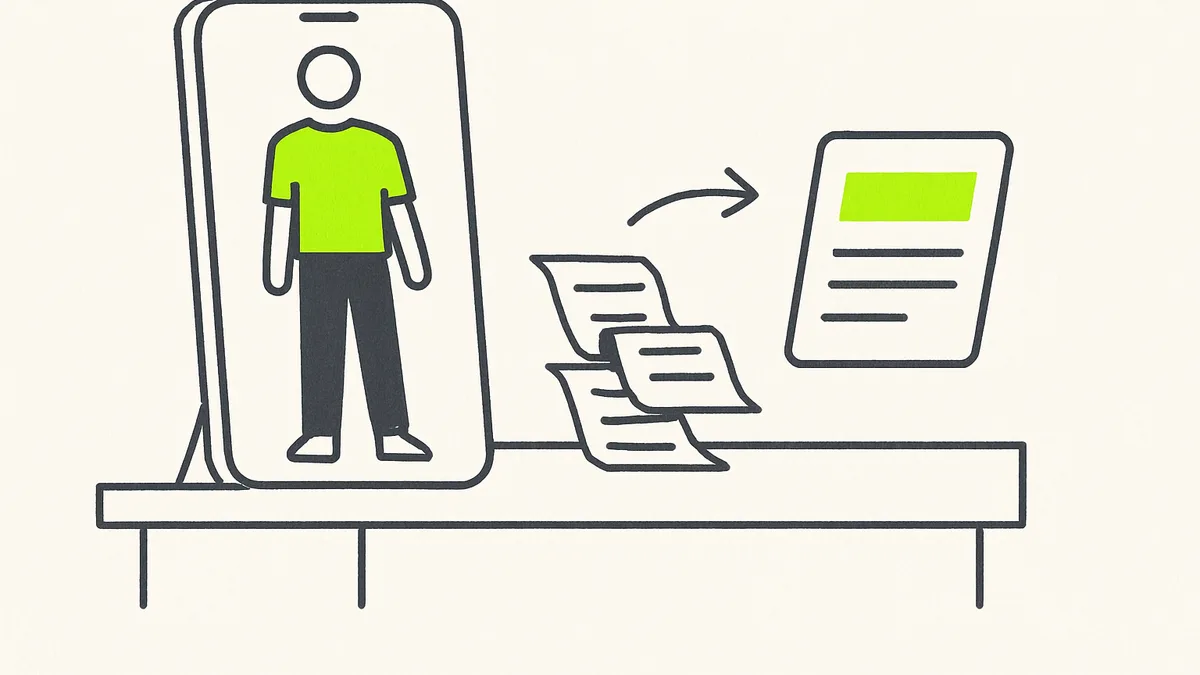
- OpenAI added a "Try on" button to product listings for clothes and accessories in ChatGPT. A shopper selects it, takes or uploads a selfie, and ChatGPT Images generates a picture of the item on them. The same update lets anyone save a product to Favorites or sort finds into folders in their ChatGPT Library. OpenAI lists it as available on mobile and web.
- Why it matters to your business
- If your business sells clothing, jewelry or other accessories online, customers may start evaluating your products inside ChatGPT itself rather than on your site, and a blurry or inconsistent product photo now has to hold up to a try-on tool, not just a thumbnail. The scanning update is less flashy but more broadly useful: anyone who still photographs receipts, intake forms or handwritten notes one page at a time gets a faster way to turn a stack of paper into one file.
- Do this
- Search ChatGPT for a product like the ones you sell and press Try on. What comes back is built from the listing photo, so it shows you how your own product images would hold up.
Starting October 1, 2026, OpenAI began rolling out a "Try on" button on product listings for clothes and accessories inside ChatGPT. Tapping it opens a prompt to take or upload a selfie, and ChatGPT Images generates a picture of the item on that person. The feature is available in ChatGPT on mobile and web.
What happens to the selfie
The reference photo used for a try-on is saved by default so future try-ons do not require a new picture each time. It can be changed or removed from Settings, under Personalization and then Reference photos.
A selfie uploaded for one try-on stays saved for future try-ons unless it is deleted in Settings → Personalization → Reference photos.
Alongside the try-on button, ChatGPT added a way to save any product to Favorites or build a folder of finds inside ChatGPT Library, so a shopper can collect items across sessions instead of losing them in old chats.
Who this touches
For a retail or boutique owner, this changes what a product photo has to do. A flat product shot that looks fine on a website may not translate well once a customer overlays it on their own body with an AI-generated try-on. Businesses whose products appear in ChatGPT's shopping results may want to look at their current listing photos with that in mind.
Reality check
This is a shopping feature for people browsing ChatGPT, not a tool for a business to control how its own products appear there. The release notes do not describe a merchant dashboard or listing settings, so there is nothing here to configure on the business side yet.
- 1
Check how your products would look in a try-on
Search ChatGPT for a product similar to what the business sells, and use the Try on button to see the kind of image a customer would generate from a current listing photo.
- 2
Review the reference photo setting
If anyone on staff has tried the feature on a shared or work device, check Settings → Personalization → Reference photos to see what photo is saved and remove it if it should not persist.
- 3
Decide whether a saved folder is worth chasing
Shoppers can now keep products in folders inside ChatGPT. That is a place your listing can sit for weeks after someone first sees it, which makes the photo doing the work more important than the moment of the search.
The part worth watching is not the novelty. It is that a flat product photo is now raw material for an image a customer judges you by, generated without you in the room. A listing shot good enough for a grid may not be good enough for that.
Sources